Bulk equipment import using Office 365 and Excel
- Tutorial
Training
This chapter describes how to prepare an Excel file to create devices in bulk in Immersive. The objective is to speed up the onboarding of a site (or a perimeter) by describing families, variables and instances in a spreadsheet, then automatically generating the files expected by the Back Office (Enhancer). Follow the order: Prerequisites→ Preparing Data → Declaring Instances → Running the Script → Custom Columns.
Reminder: handle or variable principle
A handle (or variable), represents a property of a piece of equipment. It is the link between data from a sensor or static data and its display in the interface.
To define a handle, it is essential to fill in at least four pieces of information:
- Its name : The text displayed in the interface to reference the variable.
- His type : for example a Boolean for a dry contact, a Single for a numerical data such as a temperature sensor, or a String for a state.
- His path : the connection string used to define how the variable retrieves its value from the application (example:
BuildingSensor://temp/Temperature). - Its category (Default Information):
- Information —Is the default display of a variable. It does not trigger any specific behavior other than displaying its value in the dedicated Information block.
- Default : Displayed in the dedicated block of the equipment. When the variable is set to true, 1, or kb, it is displayed in red and the device is considered to be at fault in the application.
- Maintenance : Displayed in the dedicated block of the equipment. When the variable is set to true, 1, or kb, it is displayed in orange and the device is considered to be under maintenance in the application.
- Connectivity : Displayed in the dedicated block of the equipment. When the variable is set to true, 1, or KB, it causes the device to be completely disconnected from the application.
For more information, refer to the tutorial associated with the hub.
To set a fixed value without being connected to the hub, simply prefix the value with Value:// (Example: Value://35).
Specification by family via Office scripting and Excel 365
Although it is possible to define different handles for equipment within the same family, it is not uncommon to want to formalize an identical data schema for equipment belonging to this family.
In this tutorial, we will see how, using an Office script (prerequisite: access to an Office subscription), it is possible to simplify the definition of equipment families as well as the creation of different instances of equipment in the same family, while being able to specify the particularities of each.
Prerequisites: Import the instantiation automation script into Excel
In order to be able to use the features presented in the rest of this tutorial, you need to download:
- The basic Excel Immersive declaration file: Immersive-FichierExemple.xlsx
- The automation Excel script
Once downloaded, open the basic Immersive Excel file and then import the automation script by clicking Automatiser > Tous les scripts > Afficher plus de Scripts > Immersive – Instanciation > Ouvrir.
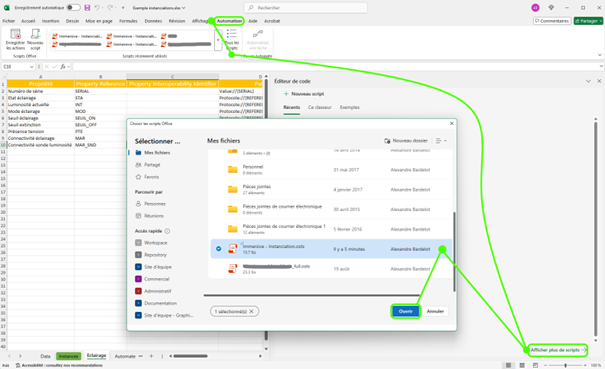
The script is now added to your workbook and can be run later.
Declaration of a new equipment family
An asset family represents a group of assets that share a common structure or behavior.
For example, all temperature sensors in a building have a temperature variable and a humidity variable as long as the doors have a variable representing whether they are open or closed.
Example: Defining a New Equipment Family
In our example we will therefore declare a new family "Temperature sensor", to do this we just have to duplicate the sheet New Family of our basic Excel Immersive and rename it to "Temperature Sensor".
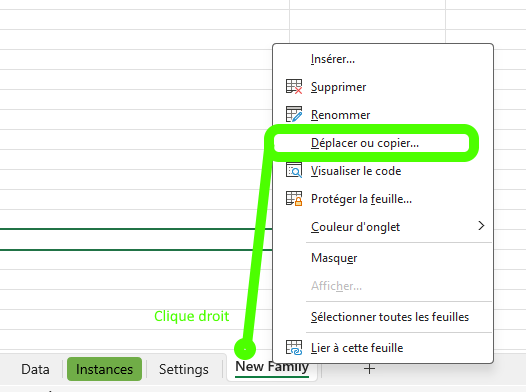
Once duplicated and renamed, our Excel sheet exposes the different columns for declaring new variables associated with the different sensors.

Adding Variables to a Family
Each row in a family's sheet represents a variable, and each column represents data associated with that variable. (The values suffixed by * represent the mandatory data to be reported for one variable, the others remain optional).
- Property * : The name of the variable (example: Temperature)
- Property reference : A business code to reference the variable in scripts (example: TEMP)
- Interoperability ID : A business identifier associated with the variable declared in another environment.
- Path / Chemin * : The connection string to define how the variable retrieves its value from the application (example: BuildingSensor://temp/Temperature). See the tutorial associated with the hub for more information. To set a value of a hard-coded variable without being connected to the hub, simply prefix it with "Value://" (example: Value://35)
- Type * : The type of the variable, (e.g. Single for a numeric variable, String for a string, or Boolean for a 2-state variable).
- Physical Quantity : The physical quantity reported by this variable. (Example: Temperature)
- Unit : The unit of measurement. (Example: C°)
- Automatic status : The category of the variable. See the tutorial associated with variable categories for more information.
- Options : Various options to fine-tune the behavior of this variable in the interface. In particular to hide the variable from users.
- Badge / Criticality : A badge name. See the tutorial associated with criticality badges for more information.
- Priority : A priority to highlight one variable over the others.
Definition of 2 variables
In our example, we will create 2 variables Temperature and Humidity. To do this, we will simply add 2 rows to our Excel sheet "Temperature Sensor" and fill in the mandatory columns "Property", "Path" and "Type", and fill in "Property Reference" to simplify access to variables later in the Scripting:
- Setting a variable to retrieve the temperature of a Temperature Sensor
- Property : Temperature
- Reference Property : TEMP
- Path : BuildingSensor://{REFERENCE}/Temperature
- Type : Single
- Definition of a variable to retrieve the humidity of a Temperature Sensor
- Property : Relative humidity
- Reference Property : HYGRO
- Path : BuildingSensor://{REFERENCE}/Humidity
- Type : Single

Creating Device Instances
An asset instance represents a piece of equipment in a family, such as the bedroom temperature sensor or the living room temperature sensor. We thus have 2 instances of the Temperature Sensor family.
To specify a new instance, simply go to the Excel sheet "Instances"

Each row in the instance sheet represents a new device instance, and each column represents data associated with that device. (The values suffixed by * represent the mandatory data to be declared for a piece of equipment, the others remain optional).
- Scope * : The scope corresponds in most cases to the building or board in which our equipment is located (example: MyBuilding). In the case where your environment has several buildings, we will define a scope per building. Generally, an Excel file is created by Scope in order to properly separate the equipment. It is possible to organize the equipment in the form of a hierarchy by separating the subscopes with the > character. This organization is particularly useful if the building has a lot of equipment and you want to better organize the list of equipment in its application. (Example: MyBuilding > Main room).
- Family * : The equipment family represents the type. It corresponds to a surname that was previously created as an Excel sheet. (Example: Temperature sensor).
- Equipment Name * : The name of the equipment that will be displayed in the interface. (Example: Room Sensor).
- Equipment reference * : The unique business identifier of our equipment. Be careful, this will be used as a key for any future modification in our environment. It is not possible to change this reference in the Excel file, if a reference is changed it will be considered as new equipment. The string
{REFERENCE}in the definition of a variable in a family will be automatically replaced by the value of that column. - Description : An optional description that will appear in the app's equipment sheet.
- Location : Optional information on the location of the equipment. It will appear in the equipment card and is usually used to help place the equipment when creating the card.
- Interoperability ID : A business identifier associated with the declared equipment in another environment.
- XXX : It is possible to add as many additional columns to describe the instances. These columns can be used to replace strings
{XXX}in the definition of a variable.
Example: Creating 2 Asset Instances
In our example, we're going to create 2 instances of Temperature Sensors. To do this, we're simply going to add 2 rows to our Excel sheet Instances and fill in the required columns Scope, Famille, Nom équipement and Reference équipement.
- Setting an instance of a temperature sensor for the chamber
- Scope: MyBuilding
- Family: Temperature Sensor
- Equipment name: Room temperature
- Equipment reference: TEMP_01
- Defining an Instance of a Living Room Temperature Sensor
- Scope: MyBuilding
- Family: Temperature Sensor
- Equipment Name: Living Room Temperature
- Equipment reference: TEMP_02

Script execution
Once the families and instances have been defined, all you have to do is run the automation script, which will merge the instance definitions with the family definitions and create a list of "handles" that can be imported into the Immersive: Enhancer's back office.
To run the script, make sure you are in the Automatiser and click Executer.
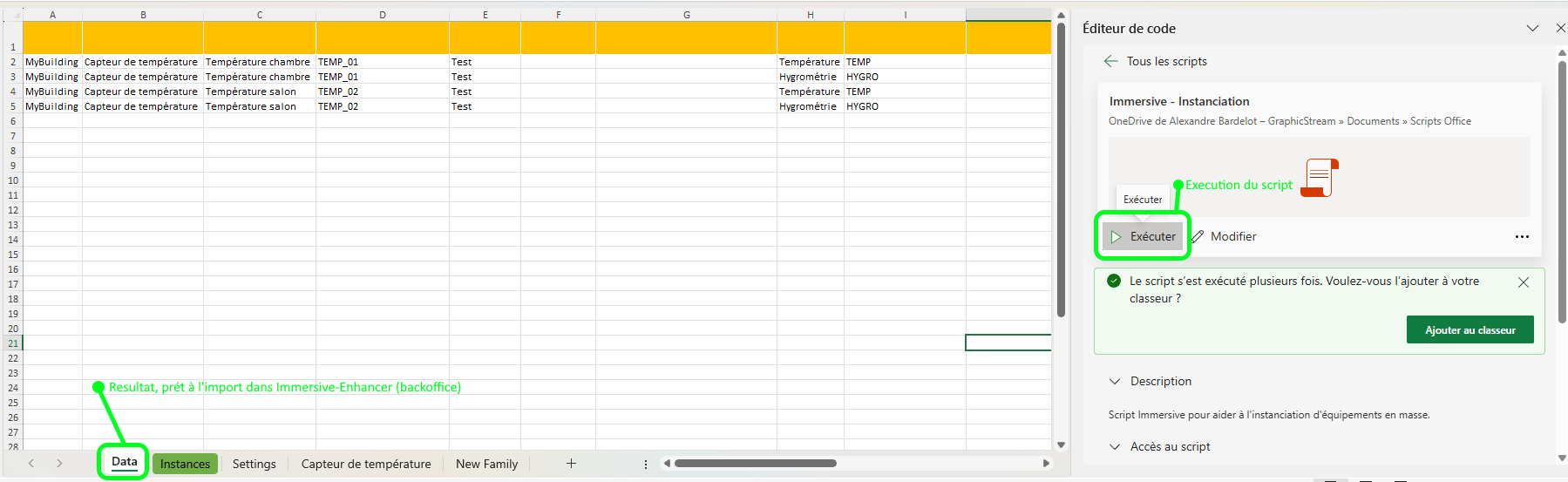
The result of the generation can be found in the "Data" tab. The script automatically went through the list of instances, found the associated family. For each instance, he went through the list of variables defined in the family sheet and created the corresponding variables for that instance by replacing the strings {REFERENCE} by the corresponding value.
We thus end up with 4 handles in total.
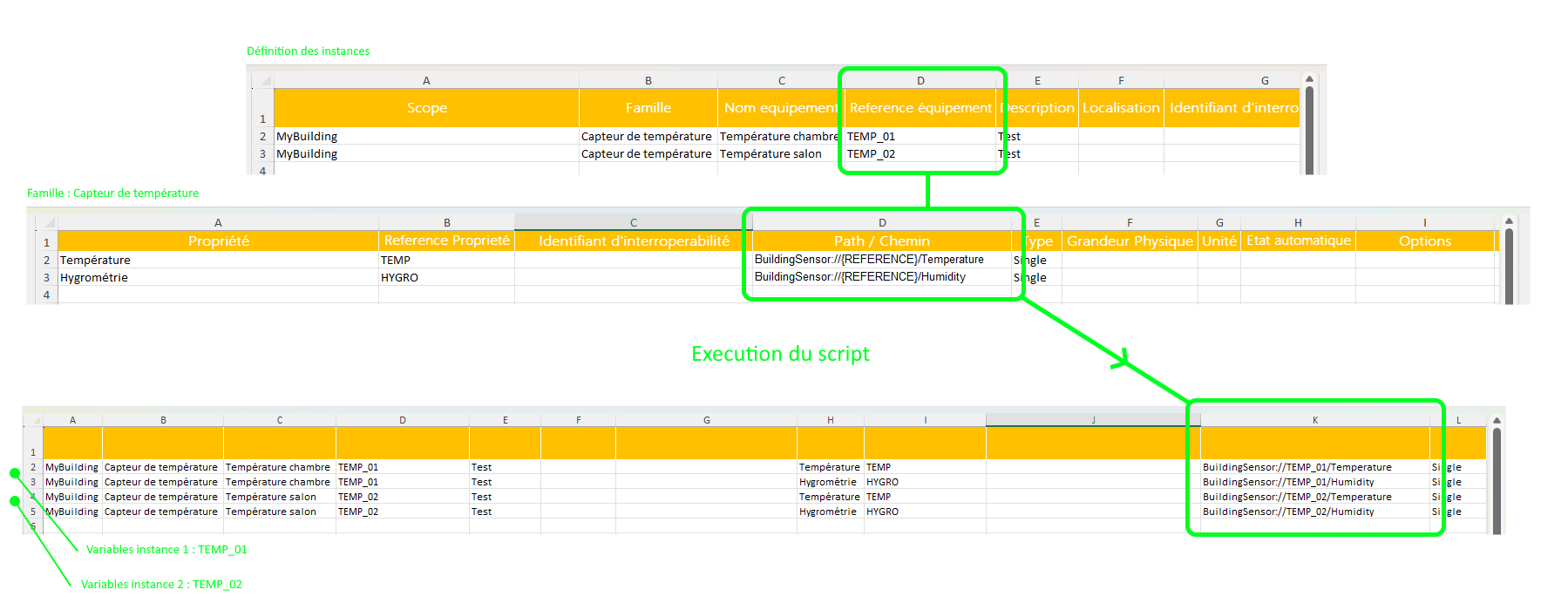
Once this step has been completed, it is possible to import the equipment from the immersive back office as explained in this tutorial: link to excel import
Additional Column Specification
It is quite common to have to set specific values for instances. In order to meet this need, simply add a column in the instance sheet.
During generation, the column name will be used as a replacement key for strings {NOM_COLONNE} present in the definition of variables in the family sheet.
Let's imagine that we want to associate a serial number with each instance, and that this serial number is visible as a variable of a device.
We add the column SERIAL in the instance sheet, and fill in the values.

In the Temperature Sensor family sheet, we add a row to define a new variable. In the Path column, we specify the string Value://{SERIAL}.

This mechanism allows the use of instance-specific values directly in the definition of variables, without changing the structure of the families.
Once the script was executed, the export added 2 variables (1 per instance) and replaced the string {SERIAL} by the value corresponding to each instance.

There is no limit to the number of columns defined in the file.
If a family does not need this value, it is not necessary to populate the cell in this column, however it is possible that several families use it.