Selection/Manipulation
- Getting started
Training
Selection is one of the Fundamental interactions in Forge, allowing you to precisely manipulate the objects present in the map. Whether it's areas, structures, 3D models, or control points (vertices), the ability to select elements correctly determines the fluidity and efficiency of modeling.
This chapter details the different Selection Methods, adapted to each type of object, and presents the Shortcuts and key combinations that make it easier to manage multiple or complex selections.
The objective is to allow a Fast, precise and controlled handling Elements to optimize editing, moving, duplicating, or deleting tasks in an interactive 3D environment.
Movement is an essential function in Forge, used to Accurately position The different elements of a map — whether they are areas, structures or 3D models. Thanks to a system of Gizmo Interactive and Dedicated keyboard shortcuts, the user can move objects along one or more axes, while maintaining full control over their placement.
This chapter presents the translation tools available, the logic of the X, Y, Z axes, as well as the methods of constrained displacement for a Rigorous and intuitive positioning. It also covers the use of Gizmo Central and the manipulation keys that allow for high responsiveness when modeling.
Mastering this function guarantees a Spatial coherence in the construction of the maps and a significant time saving when setting up complex scenes.
Prerequisites
- Have Forge installed
- Have launched Forge connected to the target organization where the card will be stored.
- Have knowledge of the Forge interface and the role of its different parts.
- Have created and posted a map.
Selecting items in a map
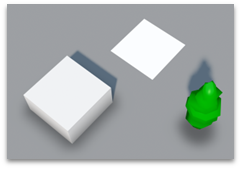
Left-clicking on an object on the map selects it.
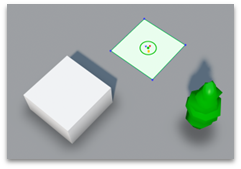
Left clicking the Shift key adds an object to the current selection.
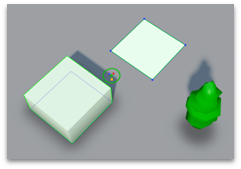
The alt + left click key removes an object from the current selection.
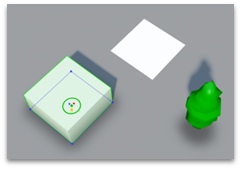
The ctrl key followed by a mouse drag allows you to use a marquee selection.
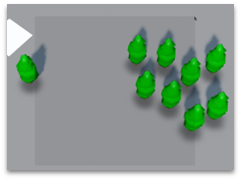
Only objects that are fully within the frame will be selected.
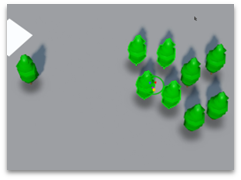
It is possible to combine the marquee selection with shift/alt before dragging the mouse to add to the current selection, or to remove it.
Selecting vertexes in an object
A selected area/structure provides access to vertices.
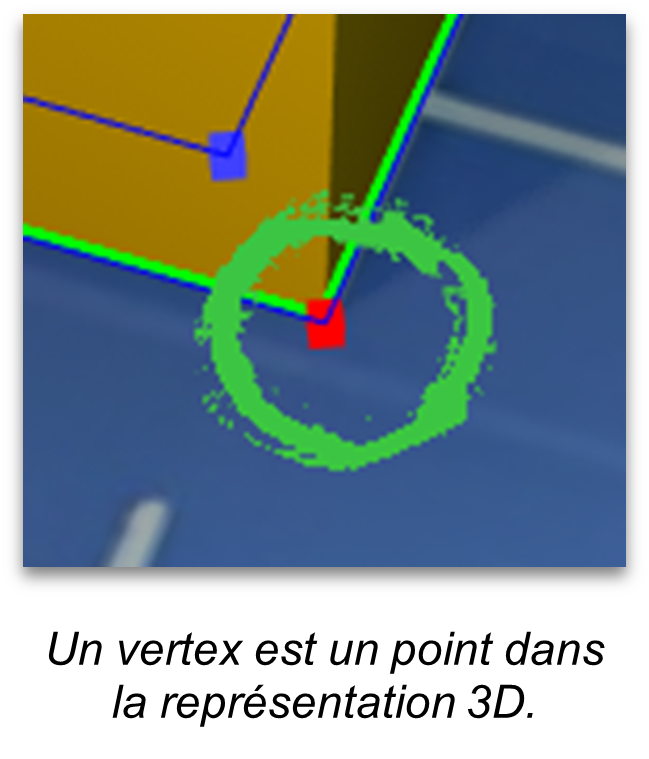
Selecting vertices uses the right-click, not left-click, as with objects.
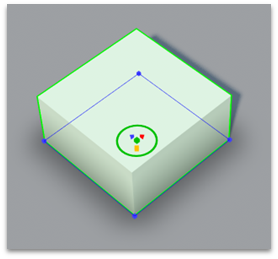
Selection shortcuts are the same as those for objects. Shift, Alt to add or remove.
Ctrl for the marquee selection.
Movement
To move an element of the map (Area, Structure, 3D Model, etc.) you must use the gizmo displayed in the center of the selection.
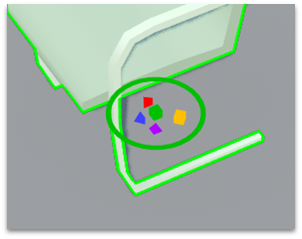
The green cube in the center allows you to move the selected item.
The blue, red, and purple arrows allow you to move the selection along one of the 3 axes, x, y, or z.
The yellow cube allows you to change the scale of the element.
The green circle rotates the selection.