Scripting: Introduction
- Tutorial
Training
Scripting is the building block that allows you to adapt the Beholder business needs without Redeploy the application. The scripts, written in JavaScript, are Stored on the server side, versioned then Driven by the players (Beholder) for local execution. They can change application behaviors, adjust the interface, control the appearance of the digital twin and orchestrate processes. The result: to rapidly develop a functional response, autonomously, with an accessible language.
Digital twin creation journey
An Immersive digital twin is built in four complementary steps: Geospatial Modeling, Creation of the equipment catalog, Geometry and data connection then scripting to add business logic. The objective is to go from a properly georeferenced 3D reference system to an application that reacts to data in real time, without redeployment on the player side.
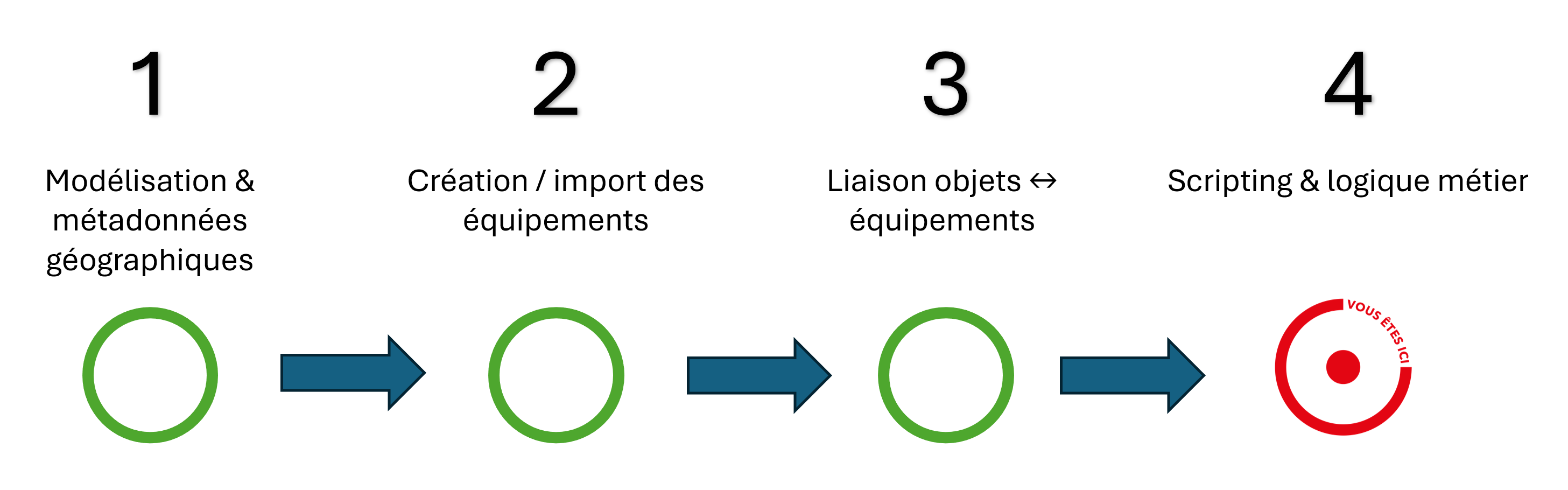
The following sections describe each step, expected deliverables, and points of attention that ensure a robust, traceable and maintainable twin.
1) Geographic Modeling & Metadata
Build the 3D map and the spatial framework in which the twin lives: sites, buildings, floors, areas, landmarks, and coordinates. The richer the modeling (geometry + semantics), the more the Subsequent uses (location, navigation, filtering, analysis) will be simple and accurate.
- Does: create/assemble 2D/3D models, define topology (site → building → floor → area), fill in coordinate systems.
- Deliverable: coherent spatial repository ready to receive equipment.
2) Creation/import of equipment
List all supervisable objects (sensors, systems, cameras, vehicles, etc.) from the client's business sources (CMMS, GIS, IoT, Excel exports, APIs, etc.). Normalize, clean and transform that data into an immersive format so that it becomes actionable entities.
- Does: Map fields (types, identifiers, properties, variables, states), control quality, enrich if necessary.
- Deliverable: Ready-to-load Immersive equipment catalog (types + instances + variables).
3) Linking equipment objects ↔
Associate visual objects (3D meshes, 2D symbols) from modeling with equipment referenced. This step creates the Traceability : a click on an object opens the right form, a change of value updates the correct rendering, and cross-queries (by zone, type, criticality) become trivial.
- Does: establish stable links (IDs, membership rules, patterns), validate spatial alignment.
- Deliverable: robust link graph between geometry and data, testable in the Beholder.
4) Scripting & Business Logic
Add local intelligence via JavaScript scripts executed by the Beholder: alert rules, Conditional styles/animations, operator paths, widgets, and automations. Scripting allows change behaviour without redeployment : just publish the scripts on the server side.
- Does: write scripts by perimeter, listen to handles, apply UI/twin reactions, log.
- Deliverable: Versioned, documented, and tested script library.
Role and purpose of scripting
- React to data received through the Hub (statuses, metrics, events) and trigger local actions.
- Customizing the UI : simplify paths, add support elements, indicate priorities.
- Styling the twin : change the appearance of equipment, display badges/tags, apply visual effects.
- Automate processes : action sequences, mode management (day/night), alert rules, operator procedures.
All the operations described in the scripting tutorials are carried out in the Backend Immersive, category "Business > Content". This is where you structure your scope of execution (Workspaces), create your scripts (Controllers), manage versions and publish.
Fundamentals
- Handle : Data path allowing a dialogue with the Hub. Scripts "listen" to changes in value and react.
- Workspace —Represents a set of Controllers applied during a Beholder session. Only one Workspace is active at launch. The Workspace represents the business workspace that will override the default behavior of the Beholder to create a business response adapted to a customer's needs.
- Controller : A container for a script (or parametric content) with its type, import rule, and versions.
- Parameterization Controllers (prefix
Infos.) — format JSON. Drive the configuration at launch (e.g. default map, scope, title, Hub address). - Equipment scripting controllers (without prefix) — format JavaScript. Logic attached to one or more pieces of equipment.
- Application scripting controllers (prefix
App.) — format JavaScript. Overall logic, independent of equipment. - Location Controllers (prefix
Translation.) — format text. Added translation keys.
- Parameterization Controllers (prefix
- Import Rule —Determines which devices a device script applies to. Examples:
- Surname —Targets all equipment in a family. For example, all Elevators.
- Several families : separating each family by
|. - All equipment : Pattern
.*. - Presence of a variable : Pattern
$(NomDeVariable)(Applies only to devices with this variable).
Backend Lifecycle
The typical tasks of an Immersive user wishing to create scripts to adapt the Beholder to a business need are the following:
- Create a Workspace and define its properties (access rights, list of linked Controllers).
- Create a Controller : specify a name (pay attention to the prefix that determines the type), the description, and the import rule if applicable.
- Edit the script (or JSON, depending on the type of controller) and Create a version.
- Publish a version : Only the published version is Charged by the Beholder. A controller can, in fact, version its scripts but can only publish one at a time.
- Link the Controller to the Workspace : Only Controllers linked to the active Workspace are executed. A controller can be associated with several different workspaces.
- Player-side loading : at startup (or depending on the reload strategy), the Beholder retrieves the Workspace, its associated Controllers and the published version for each of them that it runs locally.
Good editorial practices
It is important, to simplify the maintenance of your project and help those who will work on the workspaces, controllers or scripts you have created, to follow best practices:
- Naming clearly : Self-explanatory names for controllers, workspaces, and families.
- Precise import rules : target clearly (families, variables) to avoid side effects.
- Short and frequent versions : Publish in increments and document changes.
- Insulation : separating the "global" logic (
App.) of the "equipment" logic (without prefix). - Reversibility : Any UI/visual change should be able to be undone simply.
- Performance : favor event-based reactions and a limited scope (targeted handles).
Common Uses
Scripting allows you to overload the operation of the Beholder to offer more possibilities and features to your users. Scripting will be able to act on:
- Asset Status : highlight an equipment that is in anomaly, display an operator message.
- 2D/3D UI Customization : enrich the map (cartridges, bubbles), equipment lists, criticality badges.
- Query & filtering : Focus the view on a relevant subset of equipment.
- Geolocation & fleet : highlight the nearest resource, guide to a point, operate "virtual" equipment.
- History & heatmap —Enable historical or density layers for analysis.
Next steps in the tutorial
- Creating a Workspace.
- Creating a Controller and management of its Versions.
- Parameterization Controllers (
Infos.). - Equipment Scripting (import rules, targeting, use cases).
- Application scripting (
App.). - Location (
Translation.). - Thematic focus: Asset Status, Widget2D/3D customization, Query, 3D Customization,
Geolocation, Other actions, Inspector, HMI customization, Fleet/GeoTracking/GeoMove/NavMeshMove, Reports, Heatmap, Route history.