Customization equipment in list
- Tutorial
The information outlined in blue can be modified using Javascript.
Training
The binding is the step that connects the 3D view (graphic objects on the map) to the DOM of equipment (supervised business entities). In concrete terms, we create stable links between a visual object and an immersive device, so that any action or data (state, variable, alarm) impacts the good visual representation — and vice versa (selection, focus, equipment sheets).
Widget2D Overview
The Widget2D is the representation of a device in the user interface. The Widget2D are displayed in the list of equipment located to the left of the Beholder.
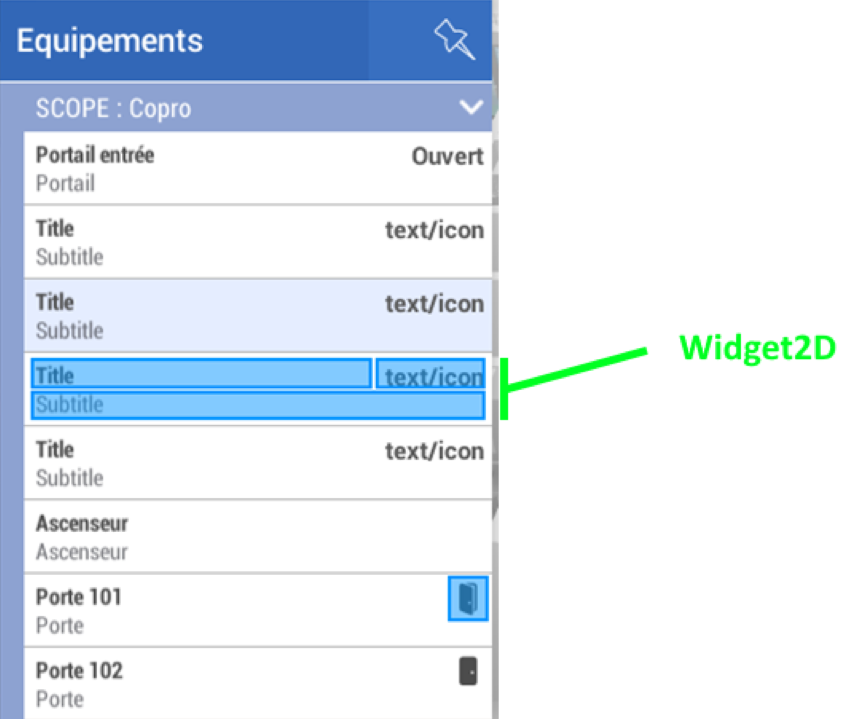
The Widget2D is composed of 3 distinct parts:
- Its title: which by default represents the name of the equipment
- Its subtitle: which by default represents the family of the equipment.
- The information part: In the form of a text or with an icon, it gives quick information on the status of the equipment. By default, it is not populated. It can be used, for example, to represent the temperature value of a temperature sensor or for a door to display a closed or open door icon.
Customizing the content of a Widget2D
Through the JS scripts, we can modify the information that is visible in the Widget2D, for this we just have to add the function Customize.
// Modifies the content of widget2D and widget 3D for a given equipment.
function Customize(equipment, widget2d, widget3d)
{.
    Widget2D.text = "Hello World !";
}
When this function is present in a script, it will be called each of the devices impacted by that script each time the device is modified or a UI element appears in the interface.
The Customize function exposes 3 parameters:
- Equipment: The equipment that will be customized
- widget2D: The UI object for changing the representation of the equipment in all 2D lists.
- widget3D: The UI object to modify the representation of the equipment in 3D. (this feature will be presented in the next tutorial)
Description of the Widget2D object (editable fields):
- widget2D.title
- The bold title at the top of the widget
- Format: string
- Default: The name of the equipment
- widget2D.subtitle
- The text below the title.
- Format: string
- Default: The name of the equipment family.
- widget2D.text
- Informational text at the top right of the widget
- Format: string
- Default: None.
- widget2D.textColor
- The text color widget2D.text
- Format: color
- widget2D.icon
- An icon at the top right of the 2D widget. If widget2D.text is already set, the icon is hidden.
- Format: image
- Default: empty if widget2D.text is already defined, otherwise takes the default equipment family icon.
- widget2D.iconColor
- The color to apply to widget2D.icon
- Format: color
- widget2D.iconBackgroundColor
- The background color of the bubble.
- Format: color
- Default: transparent.
Widget2D Example Displaying Text to See the Temperature of a Sensor
TODO
Widget2D Example Displaying an icon to represent the status of a door
TODO 2