NO ICONContains: Behaviors, Scripting
- Tutorial
Tutorial
This chapter presents the Beholder scripting mechanisms for modifying behavior equipment and application. It covers the creation of Workspaces, Controllers, The different types of scripts available and how they are associated with devices.
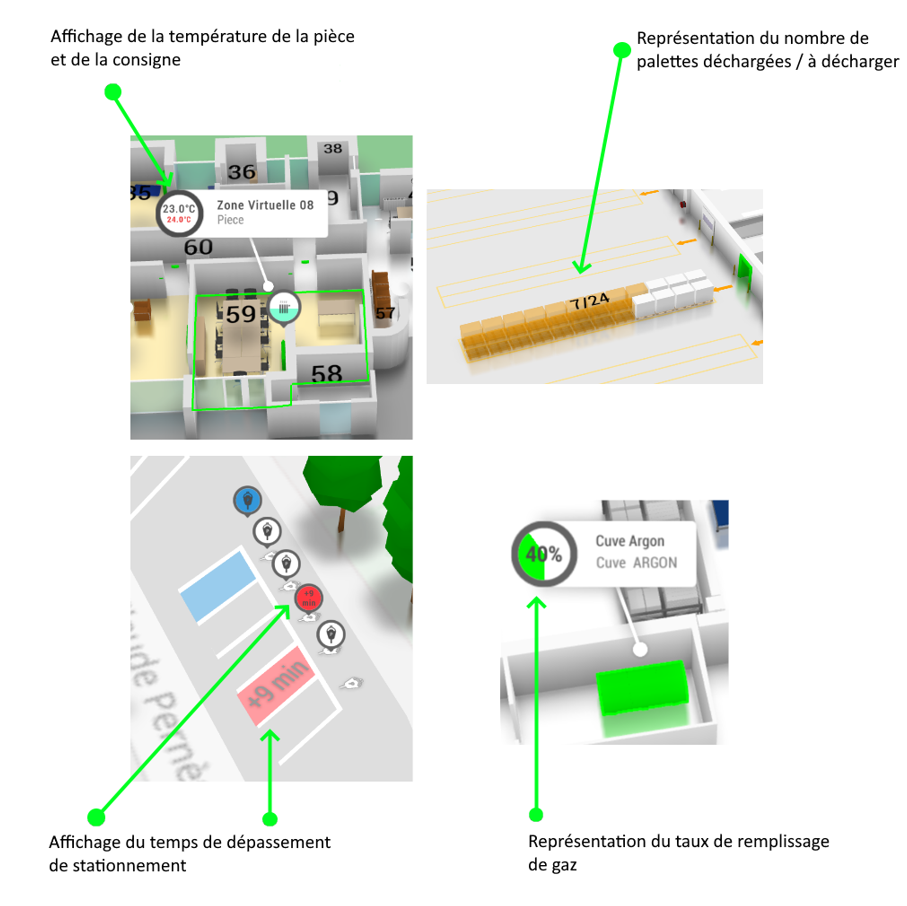
Scripting is a powerful, simple and particularly effective way to modify the behavior of the Beholder.
Change the behavior of equipment in response to data retrieved from the network, modify the user interface to simplify your users' actions, access APIs or carry out processing? Scripting is an adequate response to any type of evolution of the Beholder without asking your users update their tools.
In this article we will discuss:
- Creating a Workspace
- Creating a Controller
- Parameterization controllers
- Equipment scripting controllers
- Application scripting controllers
- Translation controllers
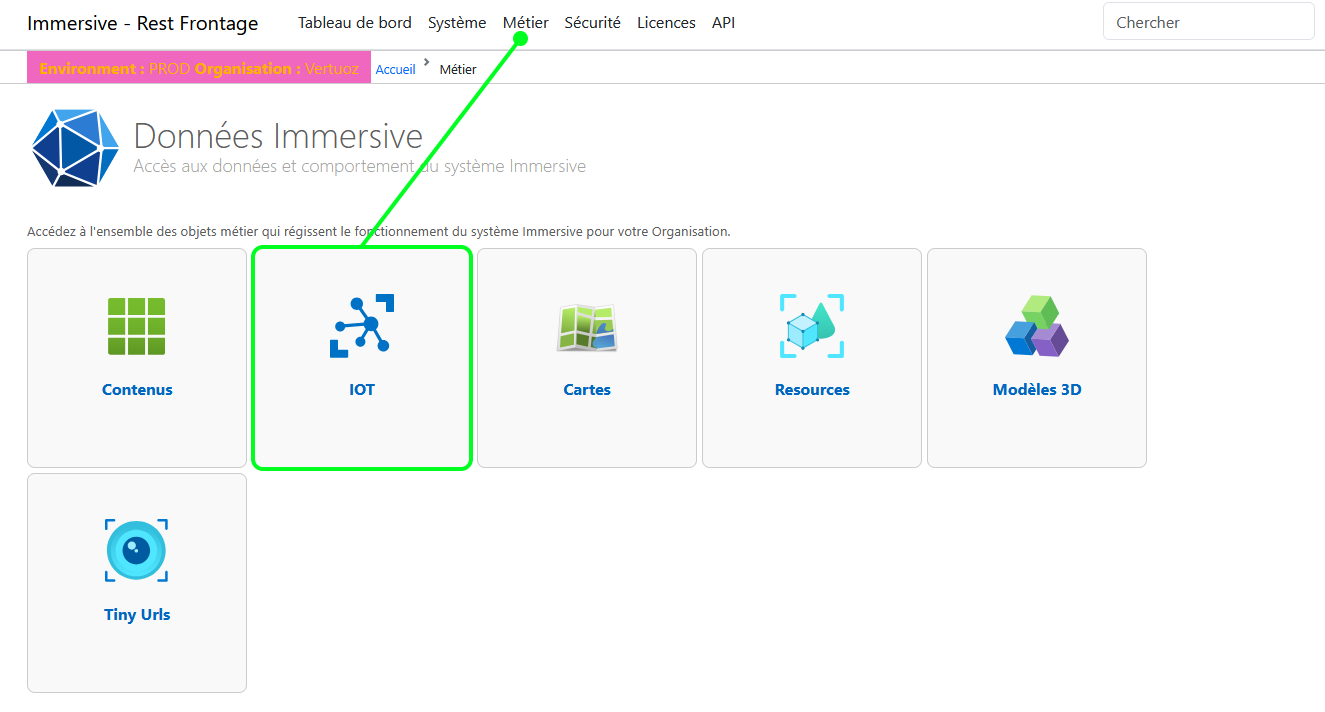
All the actions in this tutorial are done from the category "Business > Content" of your Immersive Backend.
Creating a Workspace
The Workspaces represent a set of Controllers that will act on ergonomics and data representation. In particular, they are mainly used to define different profiles accessing the application or simply different applications.
Users can have access to one or more Workspaces, however, at the launch of the Beholder, only one Workspace will be active during the session.
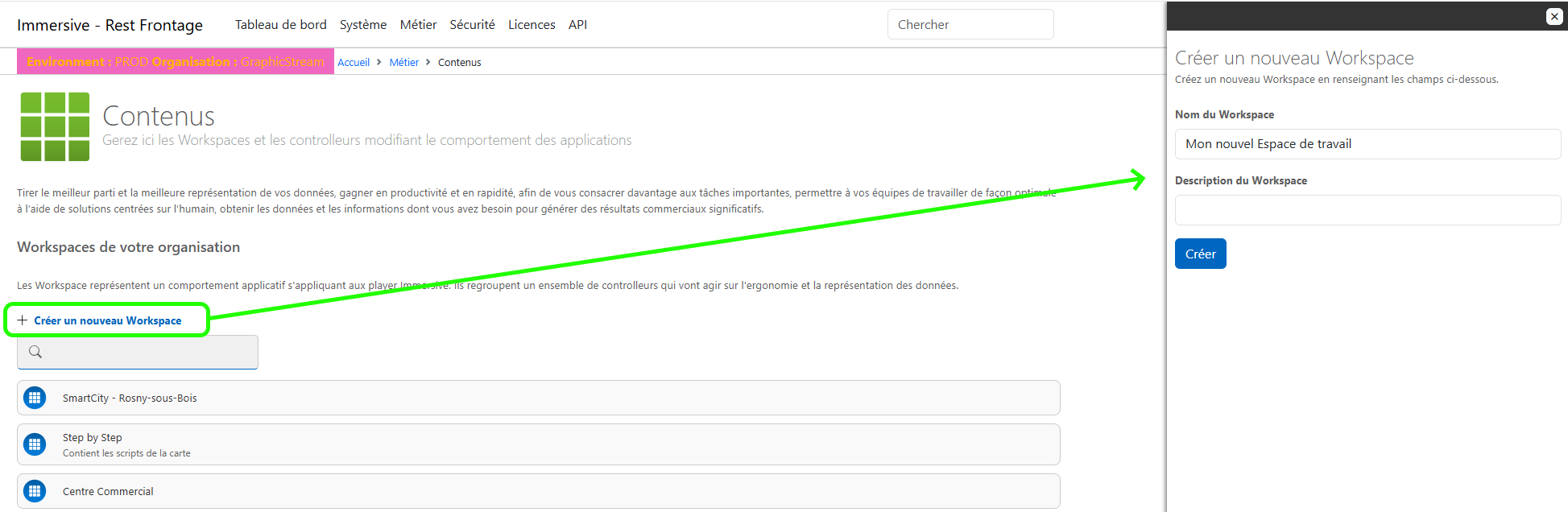
To create a new Worspace, click on Create a new Workspace. The creation panel of the Worspace opens on the right of the interface, enter its name, description (optional) and validate the creation.
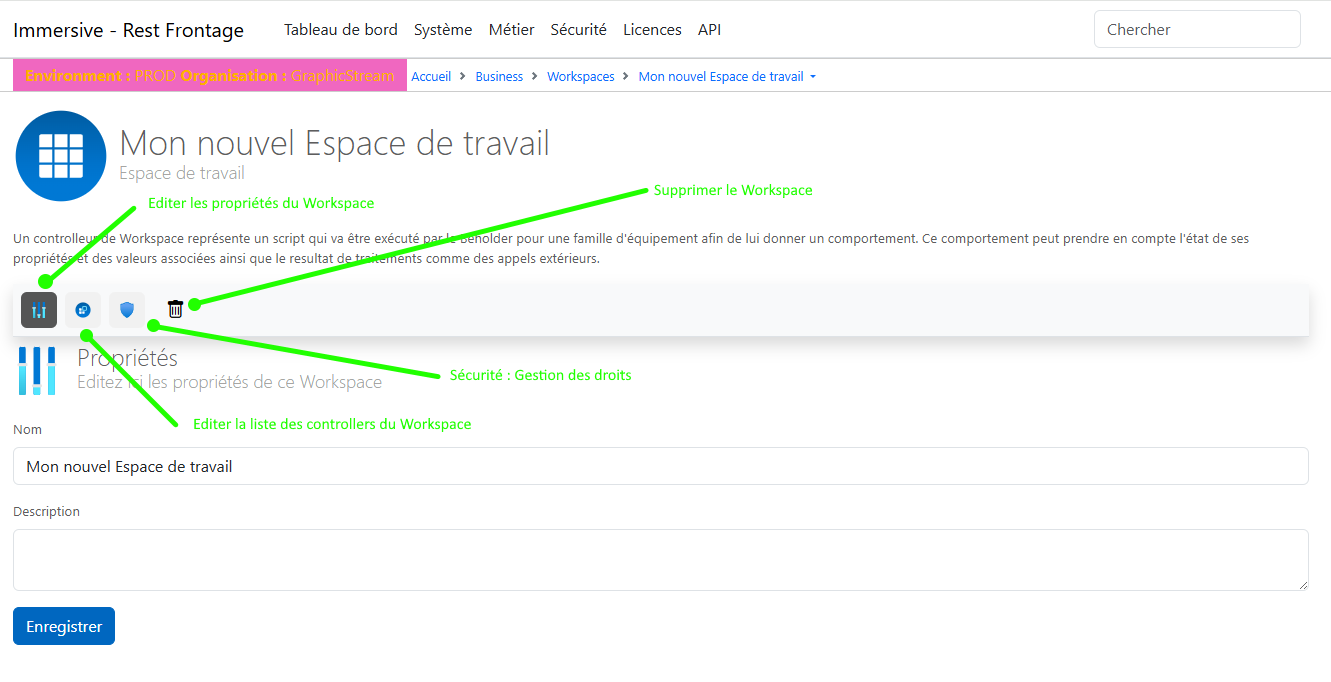
Once the Workspace is created, it now appears in the list of Workspaces in your environment. Simply click on one of the Workspaces to access its detailed file.
The different sub-parts of a Workspace sheet allow:
- Editing Workspace properties
- Access to the list of controllers associated with the Workspace, with the ability to add or remove a link
- Editing the Workspace's security rights to allow its access to a group of users.
- Removing the Workspace
Only Controllers linked to the Workspace loaded in the Beholder will be active. The others will not be used.
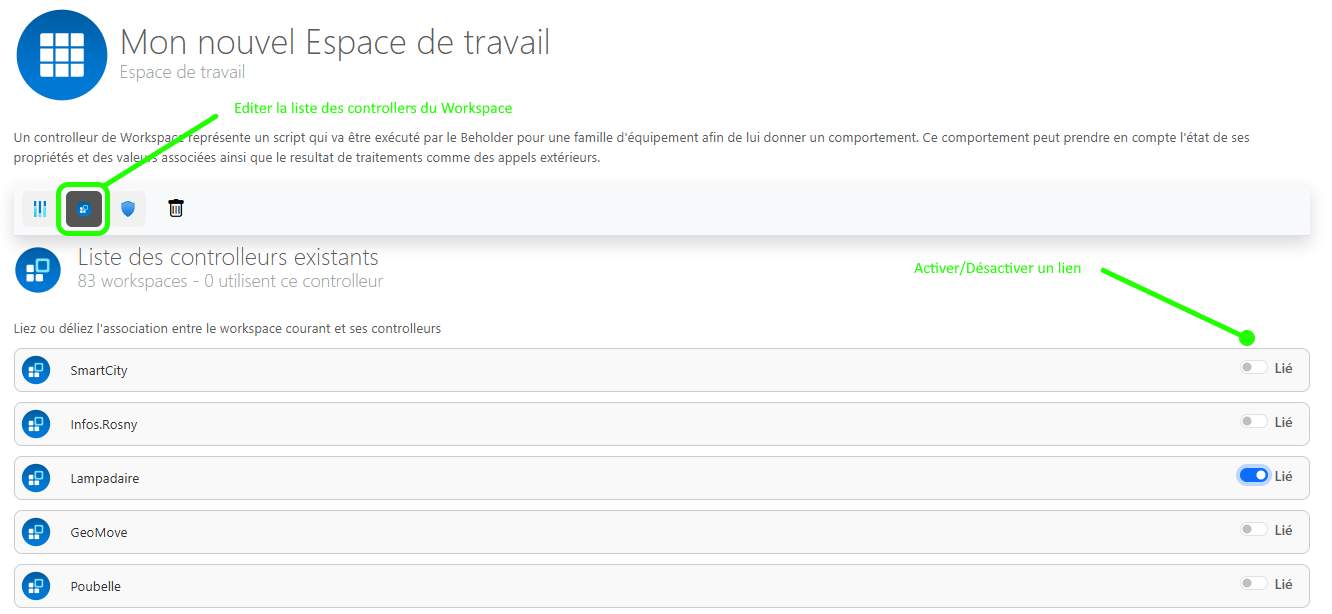
In order to associate a Controller with the Workspace, click on "Edit the list of Workspace controllers" and click on the toggle button link on the Controller line. In the following example, only the "Street Light" Controller will be active.
Creating a Controller
A Controller represents a script that will be executed by the Beholder. There are different types of controllers that will be interpreted differently, each with a specific objective.
Currently, the different types of Controller are:
- Parameterization controllers
- Use: Configure beholder settings at launch.
- Prefix:
Infos. - Format: JSON
- Import Rule: Not used
- Equipment scripting controllers
- Use: Scripting of one or more equipment.
- Prefix: none
- Format: Javascript
- Import Rule: The name of an equipment family, or
$(Nom d’un handle)
- Application scripting controllers
- Use: Scripting of the beholder in its entirety without any link to a piece of equipment.
- Prefix:
App. - Format: Javascript
- Import Rule: Not used
- Location controllers
- Use: Added translation keys to the localization system.
- Prefix:
Translation. - Format: Text
- Import Rule: the associated language (e.g.
fr-FR)
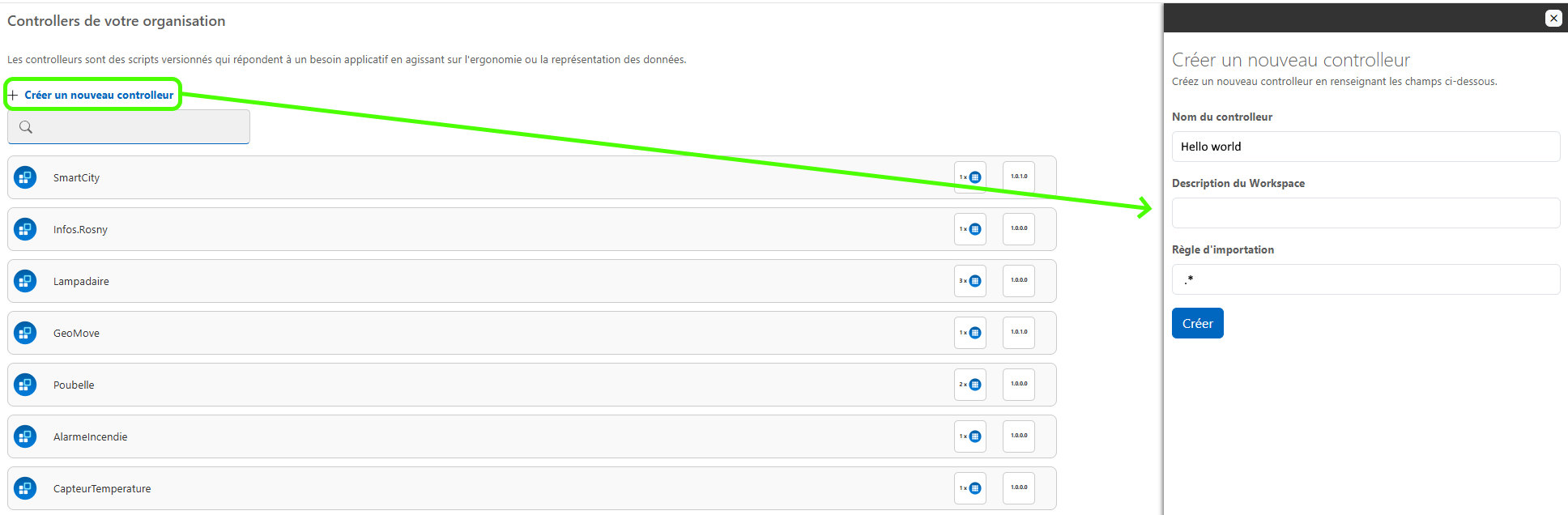
To create a new Controller, click on "Create a new Controller". The Controller's creation panel opens on the right of the interface, enter its name, a description (optional), the import rule and validate the creation.
The name of the controller is important, because depending on its prefix, it will be interpreted differently by the beholder.
The import rule depends on the type of controller, refer to the different tutorials describing each type of controller to know which rules to apply according to each case.
Once the Controller is created, it now appears in the list of Controllers in your environment. Simply click on one of the Controllers to access its detailed sheet.
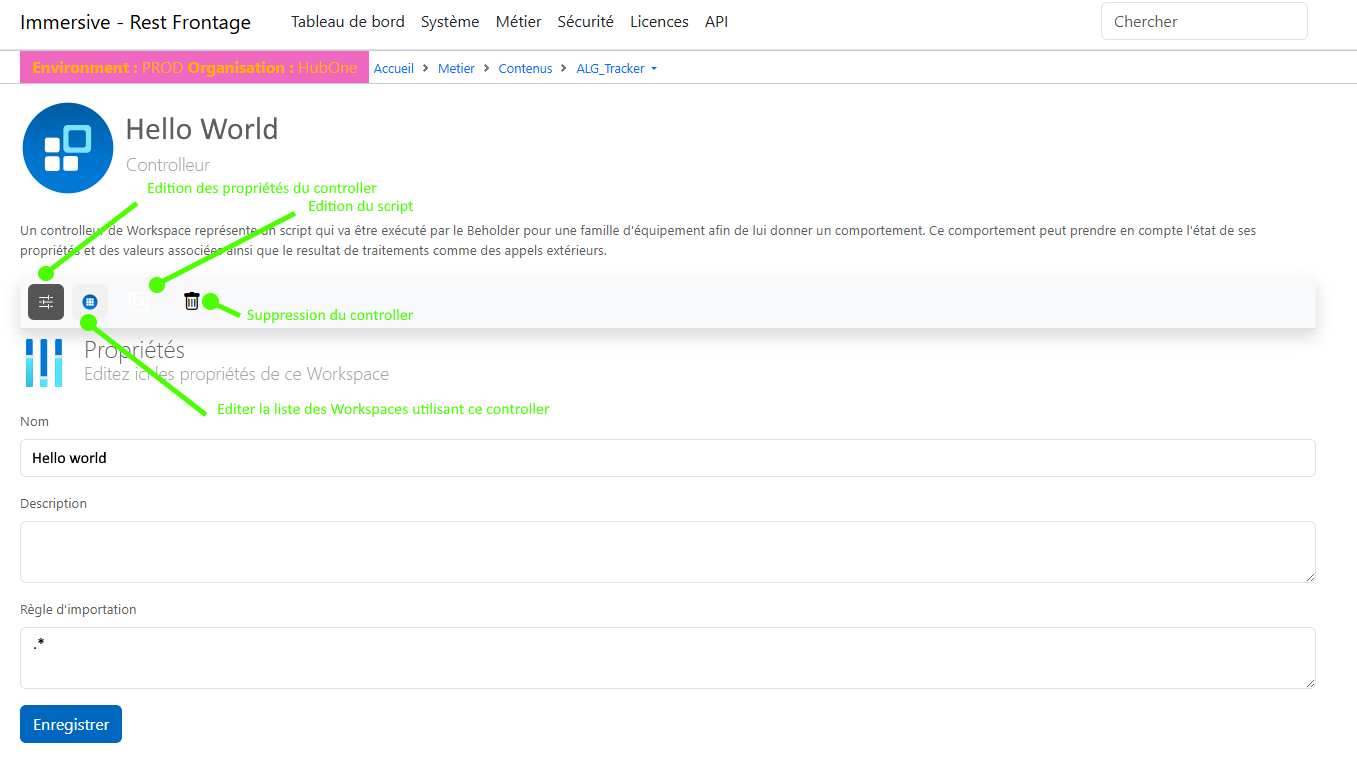
The different sub-parts of a Controller's plug allow:
- Editing Controller Properties
- Access to the list of Workspaces using this Controller, with the ability to add or remove a link
- Editing the script associated with the controller
- Removing the Controller
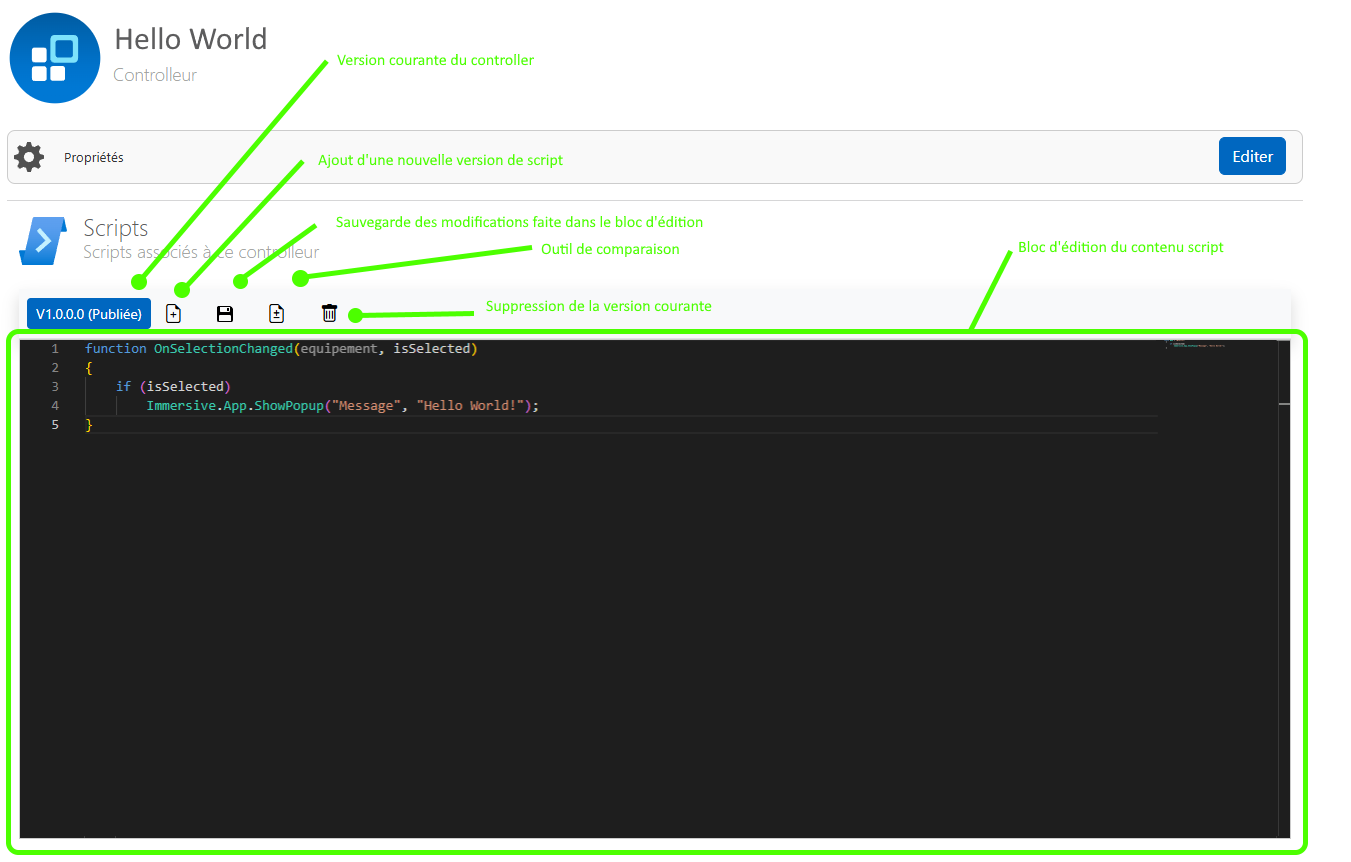
A controller without a script has no use, so you have to create a new version of the script and publish it to activate it.
A controller can have multiple versions of scripts saved (for historization purposes for temporary changes), but only the published version is checked out and used by the Beholder.
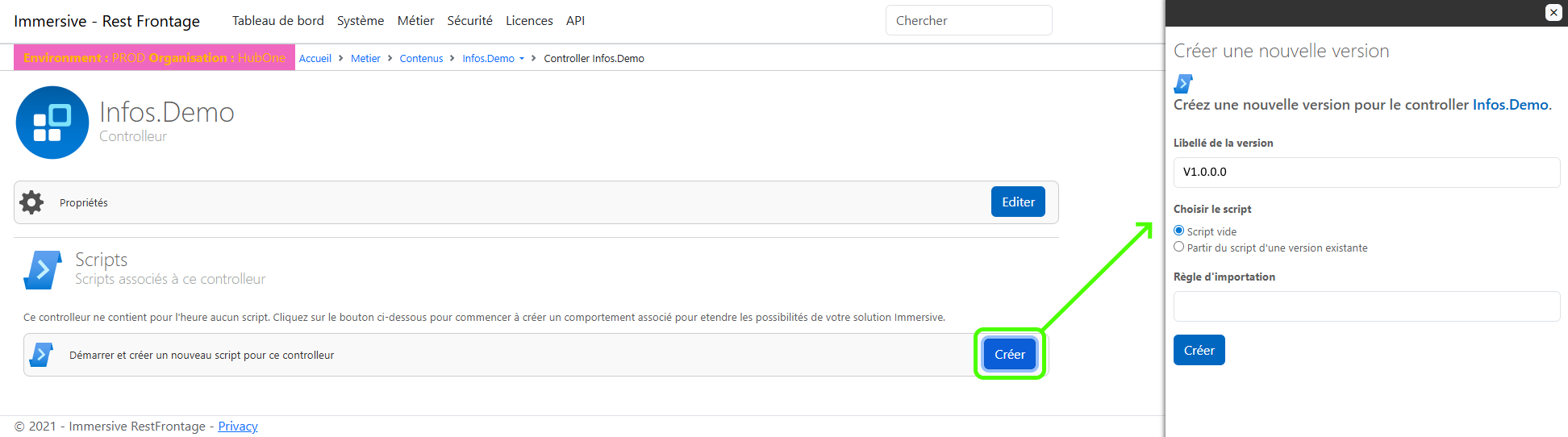
To create the first version of a script, click on "Edit script" then "Create" and enter a version number. There is no need to enter a new import rule, the general import rule to the Controller is used if it is not overridden in its script version.
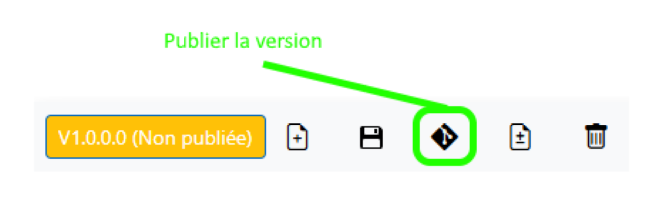
In case the Controller does not have any active version, or if the edited version is not the current version, simply click on the "Publish this version" button to assign it as an active version.
The content of the script can be edited in the editing block, and saved using the "To save". The next time the Beholder is launched, the changes applied to the script will be effective if the version is released and the Controller is linked to the Workspace you are launching.
Parameterization controllers
A parameter-type controller is used to configure the parameters of the Beholder at launch. The parameters can for example be used to configure the card to be loaded, the scope to be loaded, the address of the server (Hub).
In order to be interpreted as a parameterization controller by the Beholder,
The name of the controller must be prefixed with Infos.. For example Info.Training.
The content of the script for a parameter controller must be in the format JSON, associating a parameterization key and its value.
As the import rule is not interpreted, there is no need to fill in this information.
Example of a configuration controller that configures the beholder to load the card with the name Copro, its associated scope and which modifies the title of the application:
{
    "DefaultMapName" : "Copro",
    "Supervision.ScopeName" : "MyBuilding",
    "Supervision.TitleName" : "Formation by Graphicstream"
}
The most commonly used settings in Controllers are the following:
DefaultMapName: The name of the card to be loaded.DefaultLevelName: The name of the level to be highlighted at launch.Supervision.ScopeName: The name(s) of the scopes to be loaded. To load multiple scopes, they must be separated by a comma ",".Supervision.TitleName: The title of the Beholder displayed in the title bar.Supervision.HubAddress: The URL for connecting to the Hub.Supervision.UpdatesPeriod: The frequency of updates of calls to the Hub. (default 2 sec)
For more parameters, refer to the complete list of Beholder configuration parameters: << link to the doc>>
Equipment scripting controllers (Javascript)
An equipment scripting controller is a script Javascript who is executed for all the equipment it controls every time an event occurs.
All controllers without a prefix are interpreted as equipment scripts.
To be able to associate a behavior script with a device, there are several rules that can be configured in the script import rule.
It is possible to associate a script with one or more families of equipment, to all equipment or only to those with a specific variable.
Associate a script with a device family
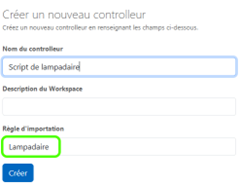
The easiest way to associate a script with all the devices in a family is to simply put the family name in the import rule.
In the following example, we create a script to customize the behavior of all the equipment belonging to the "Street Lamp" family.
Associate a script with multiple equipment families
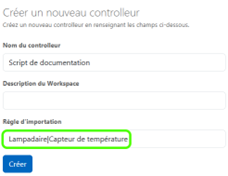
In the case where you want the script to apply to several families of devices, it is possible to separate the different family names with the character "|".
In the following example, we create a script to customize the behavior of all equipment belonging to the "Street Light" or "Temperature Sensor" family.
Associate a script with all equipment
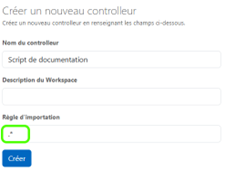
In some cases, you want a script to run for all equipment, just enter as the import rule: ".*".
Associate a script with devices with a given variable
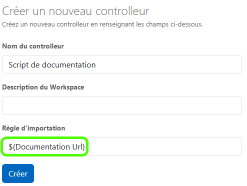
Very useful for generic scripting, it is possible that a script will only run for devices that have a variable. To do this, simply surround the name of a variable with "$( )".
In the following example, the documentation script will only run for devices that have a variable named "Documentation Url". Thus, the script could add a button to open the documentation, and use the value of the "Documentation Url" variable to open the correct documentation.
For more information on writing the content of a behavior script, refer to the "Scripting" tutorials.
Here's an example of a script that displays a message when selecting a piece of equipment:
// Affichage d'un message sous forme de popup lorsqu'un équipement est sélectionné
function OnSelectionChanged(equipement, isSelected)
{
  if (isSelected)
  {
    Immersive.App.ShowPopup("Message", " Hello World ! ");
  }
}