My Building - Garage Door
- Tutorial
Tutorial
This chapter describes how to set up a garage door in Immersive, by relying directly on information from the field. It shows how to declare a defect from Excel and adapt the representation of the 3D model according to the condition of the equipment.
Unlike the previous case of the temperature sensor, where the fault was calculated by the application, Here we have data directly from the field that represents a defect: Obstacle.
In this context, there is no need to create a script, since the default information is already provided by the sensor, we will see how to configure it directly from Excel.
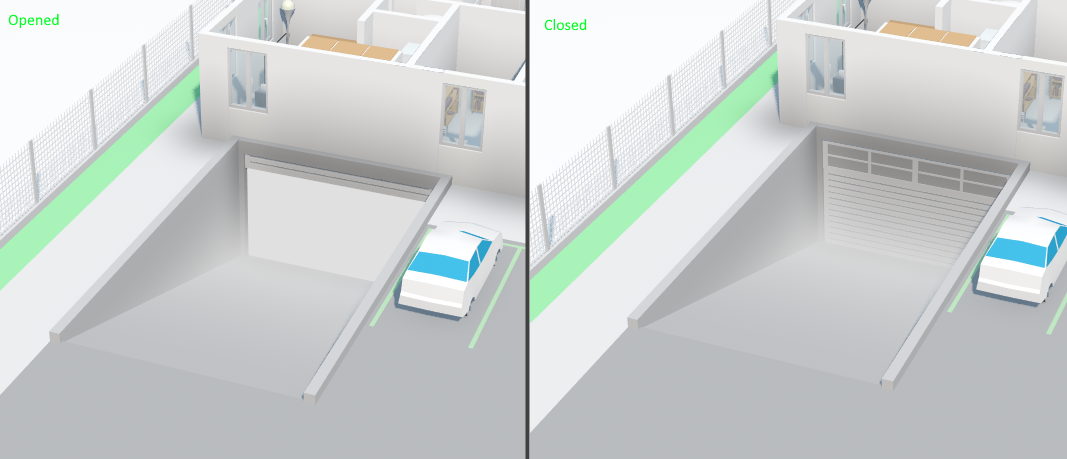
In addition, the garage door has an opening sensor, so we can modify the representation of the garage door in the digital twin to represent its condition Open or Closed.
Functional objectives
- Configure the Blocked Door Default from Excel
- Change the model of the Garage Door according to its condition.
Prerequisites
- Creating a Family-Related Behavior Script
GarageDoor - Associate the Garage Door with its 3D model in the digital twin.
- Presence of at least 1 model
Configure the Blocked Door Default from Excel
When configuring the measurement channels of a piece of equipment from the Excel file, It is possible to specify an automatic state associated with each channel.
By default, all channels are considered information and are displayed in the block "Information" equipment.
However, there are three other possible behaviors:
- Information (default)
- If no automatic status is specified, the channel is displayed
in the block "Information" equipment.
- Error
- The channel is displayed in the "Defects" equipment.
- When its value is equal to
true,koor1,
The defect is considered active and the equipment is then in a state of failure.
- Warning
- The channel is also displayed in the "Defects" equipment.
- When its value is equal to
true,koor1,
the fault is active and the equipment is considered to be in default, with a criticality level of less than Error.
- Disconnected
- The channel is displayed in the "Connectivity"
and allows you to control the connectivity status of the equipment.
- If the channel value is set to
true,koor1,
The equipment will be considered disconnected.
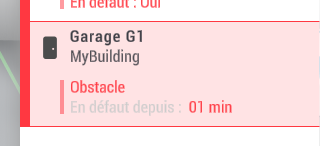
In our case, we set the automatic state Error in the column "Automatic State" for the canal Obstacle.
The channel type must be Boolean.

The garage door appears red when an obstacle is detected.
Changing the Garage Door Representation Based on its Condition
When a sensor represents the state of an asset, it is particularly interesting to reflect this state directly on the digital twin. This brings dynamism to the map and makes the visualization more lively and intuitive.
Doors are a particularly relevant use case, as they have two distinct states: open or closed, each of which can be represented visually.
To modify the representation of a device associated with a 3D model, it is necessary to use a script. This allows you to send instructions for updating the representation each time a piece of data related to the condition of the equipment changes.
In our case, the DOOR of the garage door has two possible values: Open or Closed.
Based on this value, we determine whether the door is open or closed, and then retrieve the identifier of the 3D model associated with each of these states.
To be able to modify the associated model, it is necessary to run a query (Query) to retrieve the reference of the object to be updated.
In our case, only one 3D model is associated with the equipment; it is therefore possible to use a Query based on the type of object.
function OnEquipmentChanged(equipment)
{
  // Récupération de la variable qui porte l'état de la porte.
  var doorVar = equipment.GetVariable("DOOR");

  // L'état de la porte étant une string pouvant avoir 2 valeurs Open/Close, on calcule si la porte est ouverte en vérifiant la valeur.
  var isOpened = doorVar.AsString == "Open";

  // En fonction de l'état d'ouverture ou de fermeture on récupère le nom du modèle associé.
  // Nous avons le modèle Copro_Descente_Open quand la porte est ouverte
  // Nous avons le modèle Copro_Descente quand la porte est fermée.
  var modelId = isOpened ? "Copro_Descente_Open"
                         : "Copro_Descente";

  // Par défaut les modèles 3D associés à un équipement sont colorés en vert ou rouge en fonction de leur état.
  // On désactive cette coloration automatique pour mieux voir le modèle.
  equipment.Coloration = EquipmentColoration.Disabled;

  // On execute une requète pour récupérer la référence de l'objet de type model associé à notre équipement.
  // On applique le model attendu au résultat de la requète.
  equipment.Query(".model").SetModel(modelId);
}
The result on the digital twin is as follows.