My Building - Access to documentation of an asset
- Tutorial
Tutorial
This chapter presents a simple and reusable mechanism for providing Quick access to equipment documentation from the digital twin. It details two complementary approaches to opening a documentation page directly from the Immersive interface.
One of the fundamental needs of digital twins is rapid access documentation of equipment.
In this tutorial, we'll look at how to set up easily A reusable system for several families of equipment.
Functional objectives
- Adding Documentation Information
- CASE 1: Add an access button opening a web page
- CASE 2: Make a channel clickable to open a web page
Prerequisites
- Creating a behavior script
Documentation
with the import rule $(Documentation)
Adding Documentation Information
The first step is to add a free column in the list of equipment in our building.
Here we create the column DOCUMENTATION and fulfill its value for the relevant equipment.
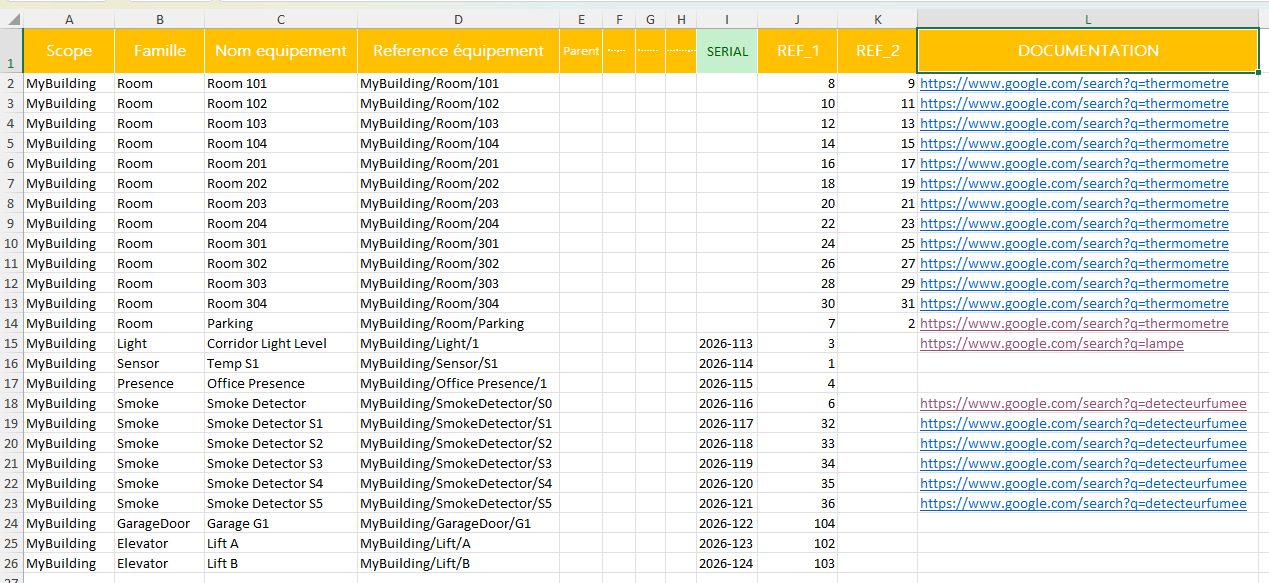
For all the families of equipment that will have access to documentation,
you have to add a new channel with the value
Value://{DOCUMENTATION},
so that it retrieves the information from the previously created DOCUMENTATION column.

Once imported, the affected equipment will have a channel indicating the link to their documentation.
We will now see how to allow the user to access this documentation directly from the interface, in two different ways.
CASE 1: Add an access button opening a web page
In the first case, we add a button in the interface,
When the user clicks, the function OpenDoc
configured when the button is created is called.
The function OpenDoc retrieves the web link
in the documentation variable and opens the corresponding web page.
// CAS 1
function SetupEquipment(equipment)
{
    // Récupération de la variable documentation par son nom
    var documentationVar = equipment.GetVariable("Documentation");

    // Création d'un bouton qui va déclencher la fonction OpenDoc au clic.
    equipment.CreateButton("Accès documentation", "OpenDoc");

    // On cache la variable de documentation car inutile pour l'utilisateur
    documentationVar.IsVisible = true;
}

function OpenDoc(equipment, param)
{
    // Récupération de la variable documentation par son nom
    var documentationVar = equipment.GetVariable("Documentation");

    // Ouverture du lien vers la documentation
    WebView.Show(documentationVar.AsString);
}
CASE 2: Make a channel clickable to open a web page
In the second case, we configure our documentation channel to make it clickable directly.
To do this, simply set the Hypertext
by putting the URL that will be opened.
Tip: it is possible to put in the Hypertext
the name of a Javascript function that will be called when the variable is clicked,
here OpenDoc.
// CAS 2
function SetupEquipment(equipment)
{
    // Récupération de la variable documentation par son nom
    var documentationVar = equipment.GetVariable("Documentation");

    // On rend directement la variable Documentation cliquable avec comme lien associé la valeur de la variable.
    // La valeur hypertext ouvre directement la page web qui lui est affectée
    documentationVar.Hypertext = documentationVar.AsString;
}