Styles
- Getting started
Training
The management of style classes in Forge is a fundamental tool to ensure visual consistency, optimal readability, and extensive card customization. Styles allow you to associate colors, textures, and materials with different elements—structures, areas, 3D models—to better distinguish them, represent their use, or reflect their status.
Style classes are particularly useful for:
- Create a consistent brand identity on a project or site.
- Improve the functional understanding of maps by leveraging clear visual codes.
- Quickly apply thematic or contextual variants without changing the objects themselves.
This chapter presents the actions available for:
- Create, name, and modify a style class.
- Apply a style temporarily or permanently to a card.
- Mastering this system saves a lot of time when designing complex boards, while ensuring an aesthetic and functional representation tailored to the needs of end users.
Mastering this system saves a lot of time when designing complex boards, while ensuring an aesthetic and functional representation tailored to the needs of end users.
Prerequisites
- Have Forge installed
- Have launched Forge connected to the target organization where the card will be stored.
- Have knowledge of the Forge interface and the role of its different parts.
- Have created and posted a map.
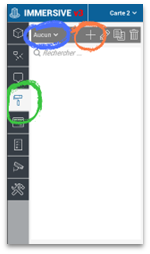
The management of styles is done by clicking on this icon:
Create a style
To add a style, click on the +, then fill in the name of the style:
Temporarily apply a style for the current map
To assign a temporary style, click None or the active style and select the corresponding style. This style will only be used on the active Forge, it will not change the default style of the card.
Assign a style to the map
Assigning a style to a map allows you to define the style that will be used by Forge when opening the map, but also by the other tools in Immersive.
To set it, you have to go to the map settings by clicking on the wrench of the active map.

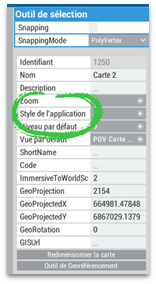
The right frame of the interface is then updated with the data of the new selection. You must then click on the associated gray box to set the default style: