The Forge interface
- Getting started
Training
Forge's interface is designed to be modular and contextual, allowing great flexibility in the design, editing, and supervision of complex maps.
Each zone has a Specific function that contributes to a smooth and complete workflow, from geospatial modeling to the integration of services and equipment.
Prerequisites
- Have Forge installed
- Have launched Forge connected to the target organization where the card will be stored.
The Forge interface is divided into 5 main parts.
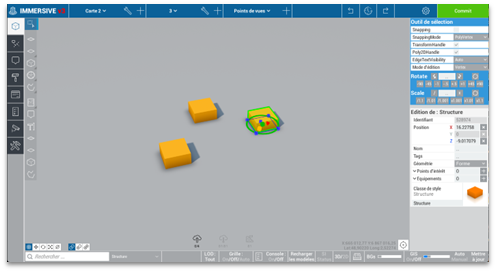
The upper part of the interface
This section contains the tools for Global management of the map.

From left to right
- The choice of the Active card.
- The choice of The active stage.
- The list and access to Viewpoints.
- Functions Undo, view history, and repeat.
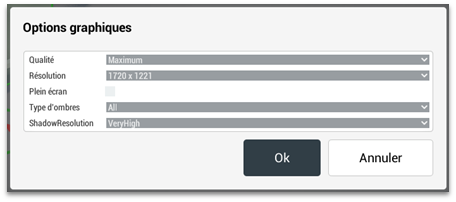
- The settings Graphics of the application.
- Button Commit to save.
The left side of the interface

It is the Edit Modes panel. Each tab changes the display and actions available in the canvas:
 Map Editing: Modeling and maintenance of a map.
 Editing the navigation graph: creation and editing of pathways.
 Editing of services: assign and edit services.
 Style Editing: creation and editing of styles.
 Operation: Creation and editing of devices.
 Validation: various continuous reports of the active map.
 Editing of supervision: Assign and edit equipment
 Tools: contains the model manager, the 2D export of the map, and a tool for cleaning up the map's superfluous vertices.
The lower part of the interface

Contains elements of Usage Support : the search field, various visualization options, basemaps, and the console.
The right part of the interface
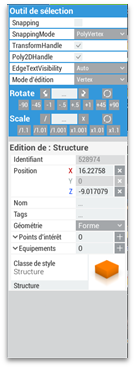
Displays contextual settings:
- Parameters of The active tool.
- Details of the Selection in progress.
The central framework of the interface
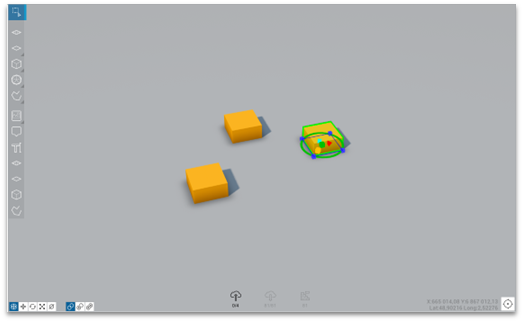
Contains the canvas of the work. :
- A tool palette on the left to interact with the map
- Of the Informative Icons Bottom: number of pending saves, download, progress of the construction of the scene in progress (icon of the cinder block wall)
- A Refocusing Gizmo camera in the bottom right corner
Performance Management

Forge's graphics settings allow you to change the quality of the display. By changing the "Quality" field, the required performance decreases.